Docs menu
Docs Get started
Quickstart
Endpoint, credentials and a one-line test: your first request through the proxy in a minute.
Last verified: October 20261. Get your credentials
Every product you buy has its own username and password. Both are on the product's page in your dashboard, with copy buttons. The credentials pick the pool, so the host stays the same whichever one you use. No product yet? See pricing.
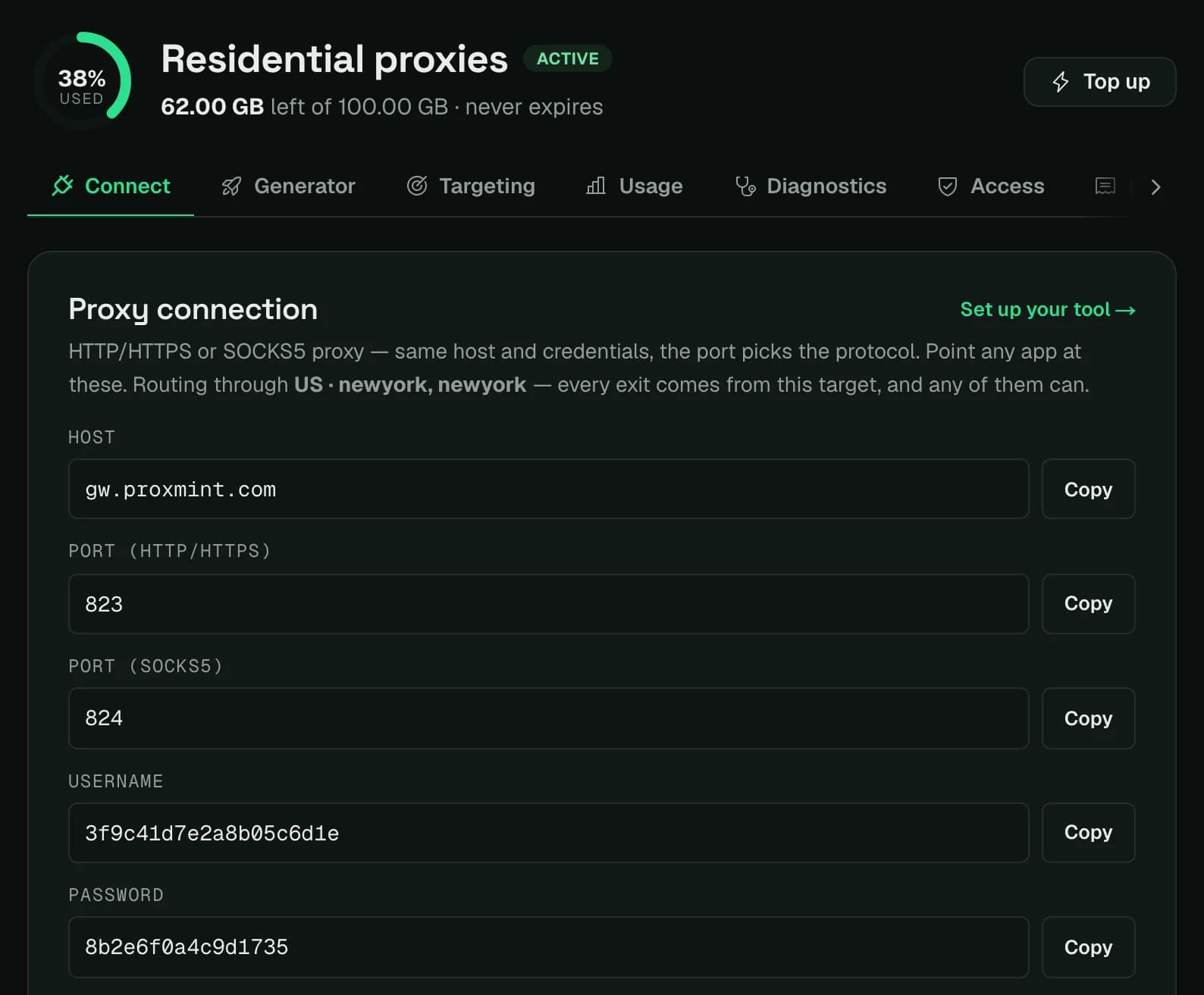
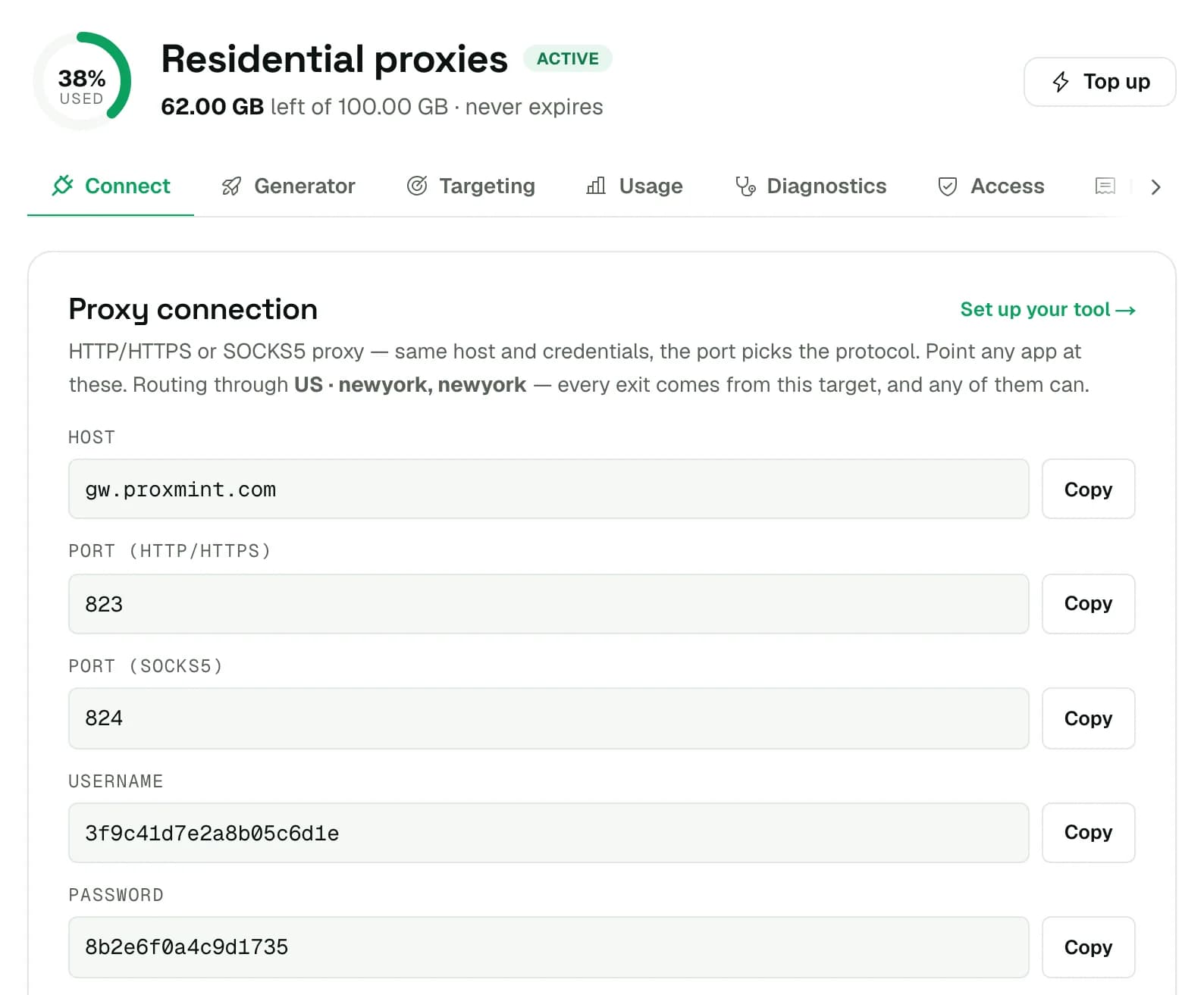
Connecting from a server with a fixed IP? Add that IP on the product's Access tab and it connects without a username or password.
2. Point your app at the gateway
823 HTTP(S) · 824 SOCKS5Exit IPA home, phone or server in the country you pickThe websiteSees the exit IP, never yours
| Host | gw.proxmint.com |
| HTTP / HTTPS port | 823 |
| SOCKS5 port | 824 |
| Username | Your product's username |
| Password | Your product's password |
Both ports take the same login; the port only picks the protocol. Every request gets a new IP. To keep one, add a session to the username: sticky sessions.
SOCKS5 carries TCP only. UDP traffic such as QUIC (HTTP/3), voice calls and UDP games won't pass through it.
3. Send a test request
Put your username and password in place of PROXY_USER and PROXY_PASS. Each command prints the IP the site saw, which changes on every run.
An error instead of an IP names its cause in the status line: 407 NO_USER means the login was refused, 503 NO_RAY means no IP matches your targeting. Error codes lists every one. The Test connection button on your product page runs the same check and tells you which it is.
4. Set up your tool
Each guide shows where your tool keeps its proxy settings and what goes in every field.
Antidetect browsers








Cloud phones

Proxy clients

Languages & HTTP clients
Scraping & automation
Next steps
- Targeting & sessions: choose the exit country, state, city or ASN, and hold one IP through a login.
- Blocked websites and port access: what the network refuses. Check your target before you buy.
- Customer API: read your bandwidth and credentials from your own scripts.